How do I download all of the suppliers answers to a questionnaire?
Issue you are facing
I want to download all of the suppliers answers to a questionnaire. How can I do this?
Solution
In order to download all of the suppliers responses to a questionnaire you have created in your Onboarding event you will need to follow the below steps.
- Click on the questionnaires tab and select the questionnaire you wish to download the responses for.
- Click on the "Export answers" drop down in the bottom right of the page, this is situated at the base of the questionnaire so if you cannot see this straight away, scroll down in order to view this.
- You will then have the option to select just the questionnaire you are viewing or "all questionnaires". In the case of this example (just one questionnaire) you would need to click "This questionnaire".
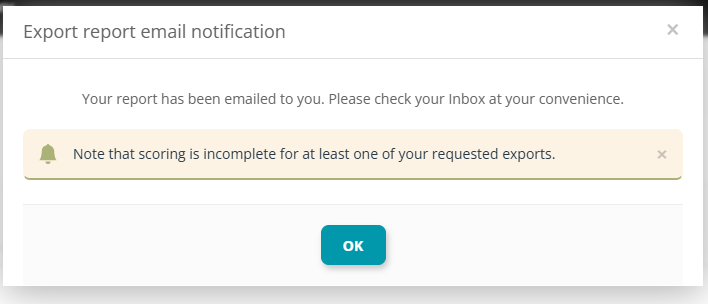
4. Once clicked, a pop out will appear stating that the report has been emailed to your user (in an excel format). If scoring has not been completed then you will also be notified here as shown in the screenshot below. To exit the pop out, click "OK" or close the window via the "X" in the top right of the pop out.
5. The email will look something like this with the report (in an excel file) attached.